 DragDock
Open the grid
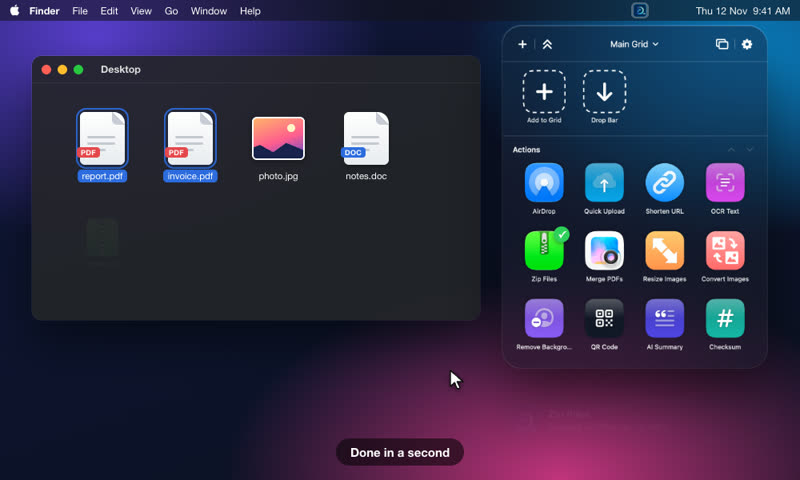
Drag a file toward the top of the screen, or click the menu-bar icon. The grid appears on the screen your cursor is on. Drop the file on an action tile.
While you drag, a small bubble under the menu-bar icon shows how many items you are holding. Move onto it to open the grid.
Drop Bar
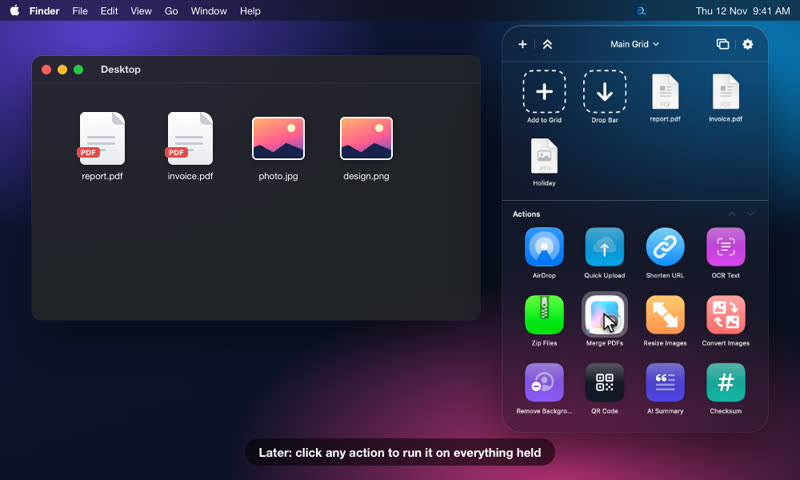
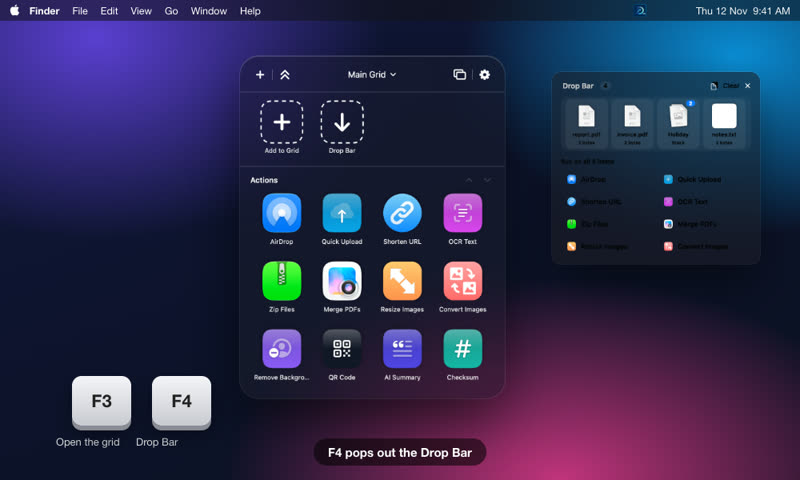
The shelf at the top of the grid holds files and text for later.
- Drop files or text on it. Each file is one stack. Drag files onto a stack to group them.
- Click a stack to see its files. Drag any file out.
- The bar's menu switches between several named Drop Bars, for example one per project.
- Pop out the Drop Bar to keep it on screen. Press F4 by default.
- Click an action tile while items are held to run it on all of them.
Actions
Tiles run an action on the dropped items: zip, move, copy, rename, resize images, OCR, merge or compress PDFs, create a disk image, AirDrop, uploads, AI tasks and more. See the full catalogue.
- + menu: add an action. Right-click a tile to edit, duplicate or delete it.
- Edit mode: drag tiles to reorder them or move them between categories and grids.
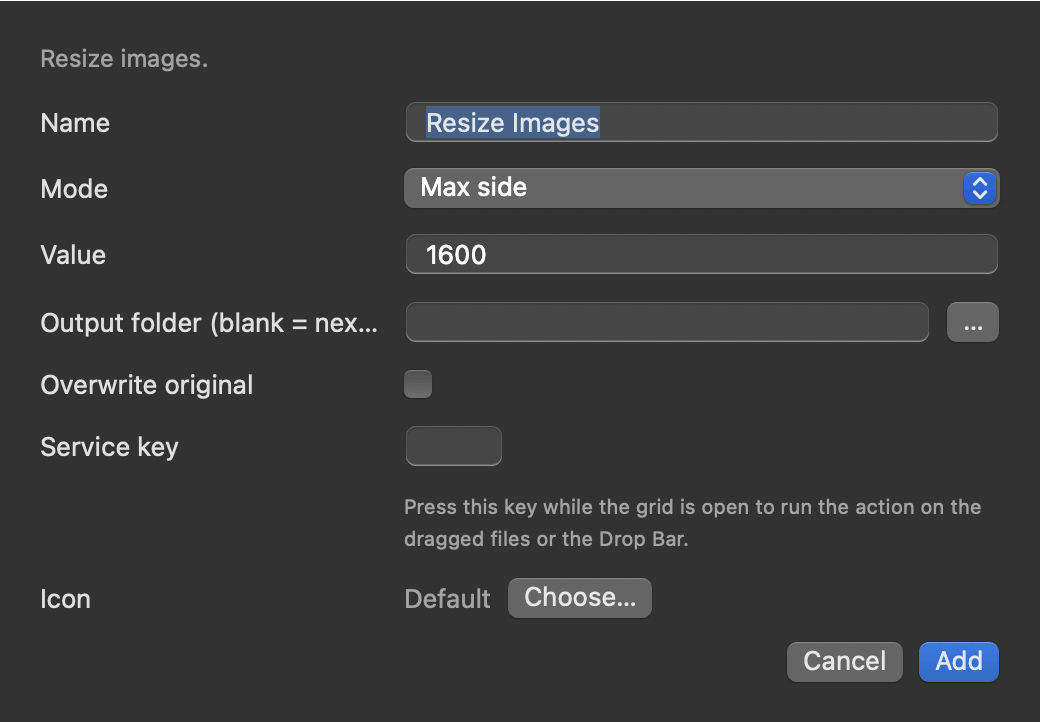
- Service key: assign one key to an action and it runs while you drag. The editor warns about duplicates.
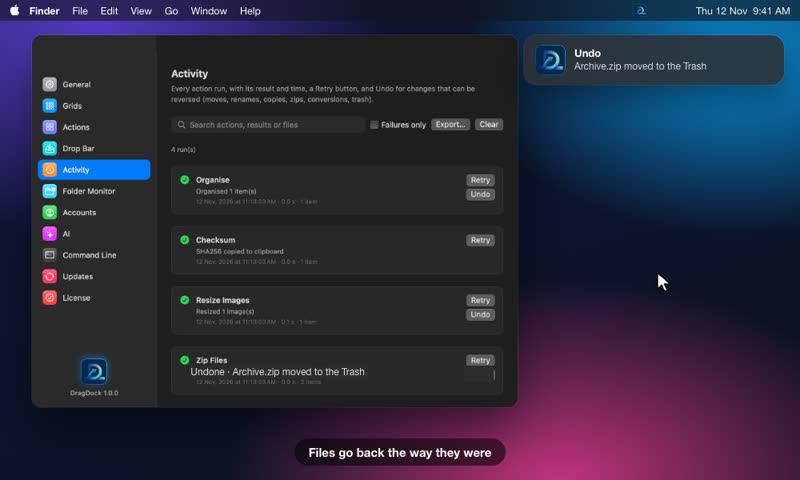
- Results show in Activity. Reversible changes have an Undo button.
Categories and grids
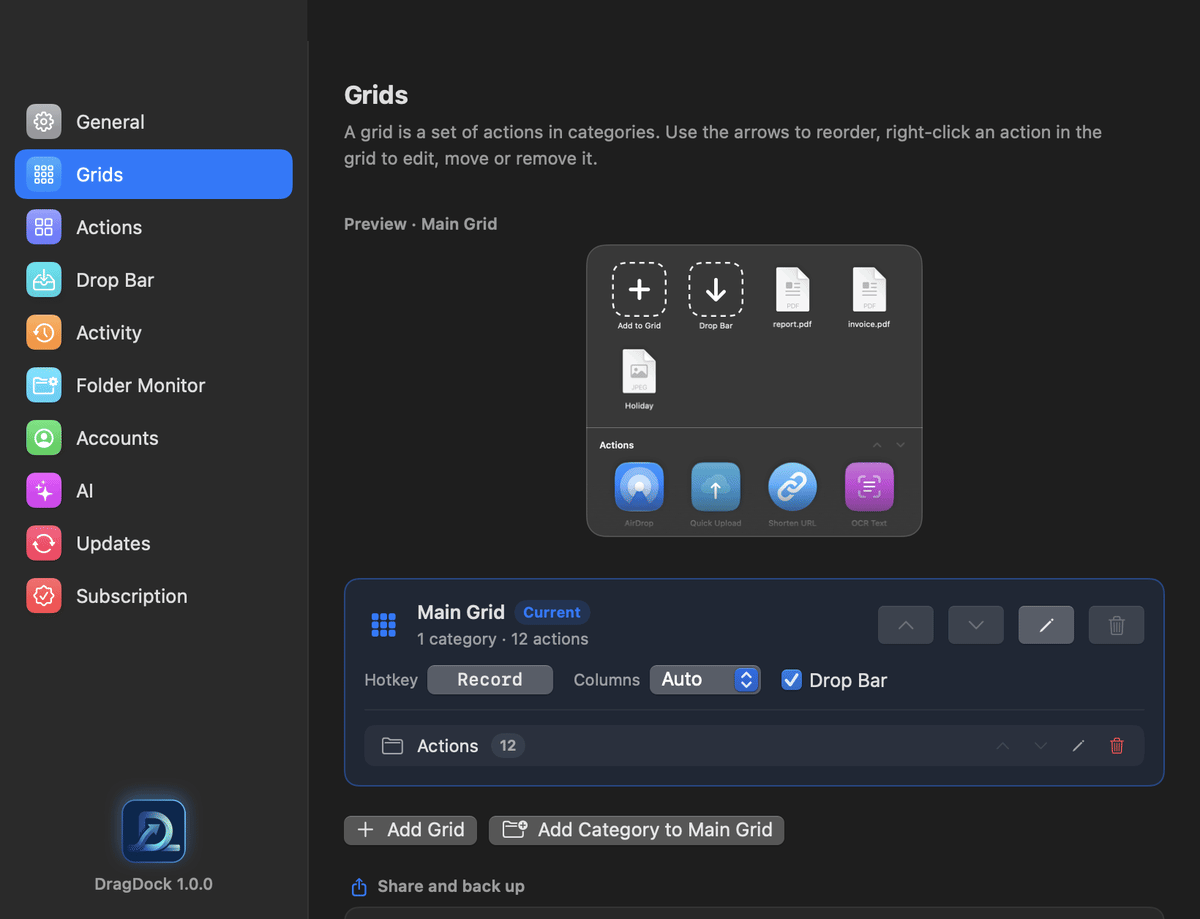
- + → New Category adds a titled group of actions. Hover a category header and use “…” (or right-click) for Rename, Move Up or Down, Move to Grid and Delete.
- Deleting a category deletes its actions. DragDock tells you how many first.
- Create more grids from the grid name menu. Each grid keeps its own icon size, width and Drop Bar setting. Preferences → Grids has arrows and a Move to another grid menu.
- Export a grid to share it, and import one from a file. Secrets are not included in exports.
Favourites, Finder droplets and floating windows
- Right-click an action → Add to Favorites. It is pinned at the top of the grid.
- Each favourite also becomes a small app in
~/Applications/DragDock Favorites. Drag that folder into the Finder sidebar, then drop files on a droplet to run the action from Finder. - Right-click an action → Open in Floating Window for a small always-on-top drop target. Open ones return after a restart.
Folder Monitor
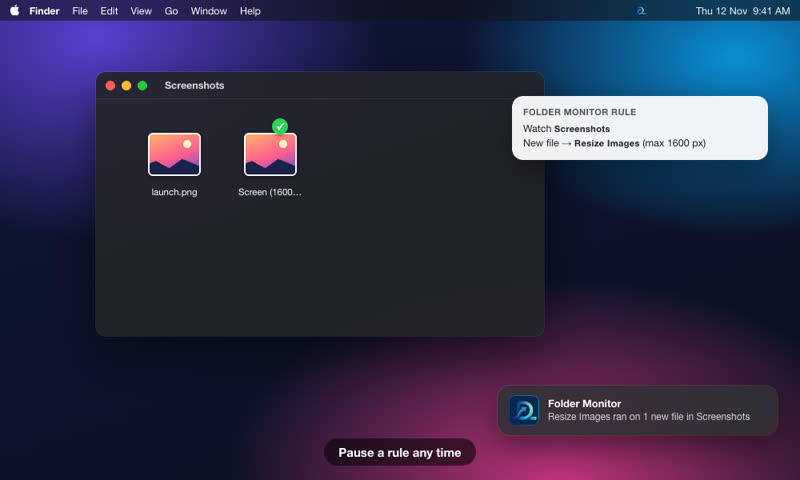
Preferences → Folder Monitor runs an action on new files in a folder. Pause, duplicate or change the action per rule. The screenshot folder rule is built in.
Hotkeys
Preferences → General sets a global key for the grid (default F3) and the Drop Bar (F4), plus one key per grid and next/previous grid. Press a key combination in the recorder to set it.
Undo and conflicts
File moves, renames, zips, conversions and trashing can be undone from the Activity tab. A conflict policy (ask, rename, overwrite, skip) controls name clashes. Long jobs show progress on the tile and can be cancelled.
Accounts and cloud services
Actions that talk to a service open a setup guide in their settings sheet, with the links you need and a Test connection button. Keys and tokens are kept in the macOS Keychain.
- Dropbox and Google Drive: sign in with your account in the browser.
- Amazon S3, R2, MinIO: enter access keys, bucket and region.
- Imgur: needs an existing Imgur Client ID. Imgur has closed new registrations.
- Quick Upload: no account. Files go to a public link that expires.
AI actions
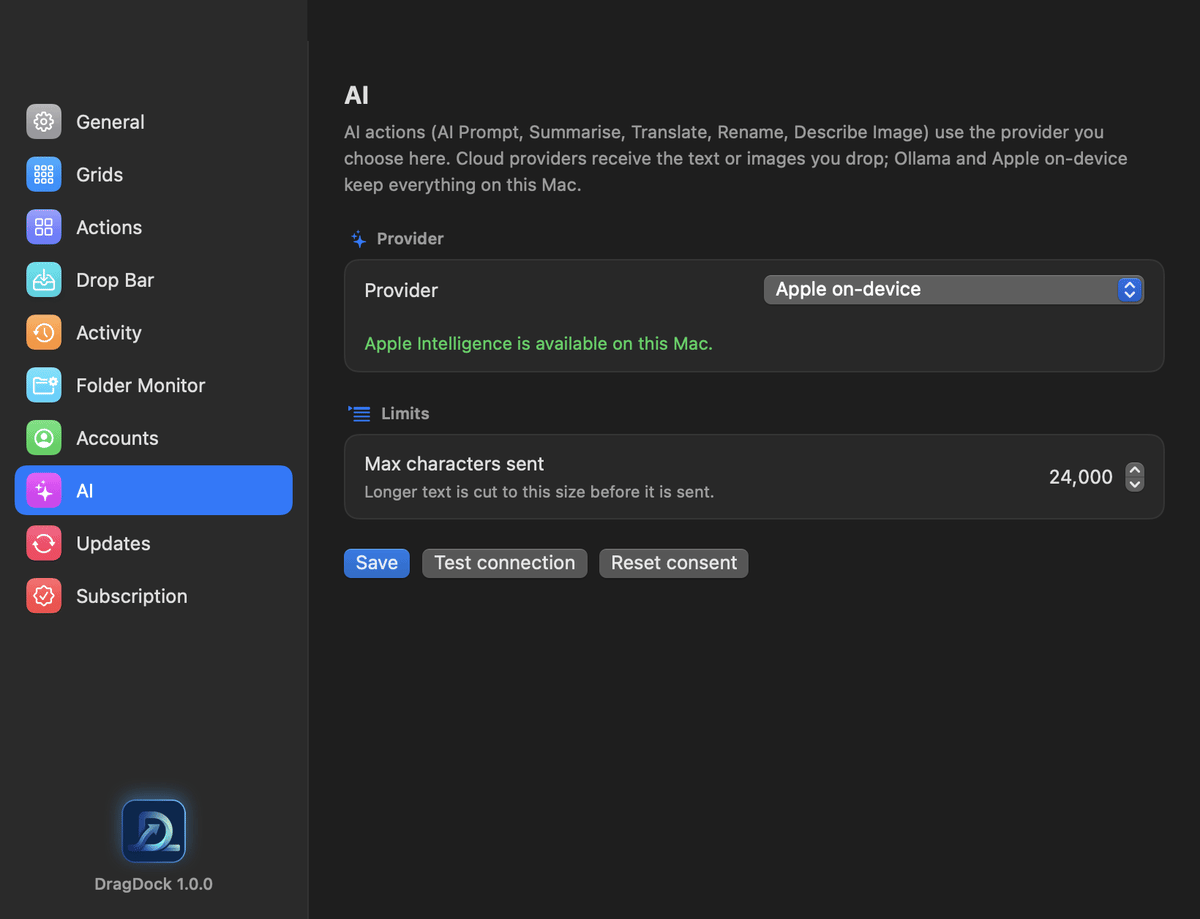
Preferences → AI chooses the provider: Apple on-device, a local server (Ollama, LM Studio), or a cloud provider with your key. Cloud providers receive the text or images you drop, so DragDock asks for consent first. Max characters sent is configurable.
Siri, Shortcuts and scripting
- In Shortcuts, search “DragDock”. Actions: Add Files to Drop Bar, Open DragDock Grid, Run DragDock Action, Clear Drop Bar.
- Siri phrases include “Open DragDock” and “Add files to DragDock”.
- The Run Shortcut action runs one of your shortcuts on dropped items.
- Several grids can each have their own hotkey; use next and previous grid keys to step through them.
dragdock command-line tool (Apple's sandbox).AppleScript and hooks
DragDock is scriptable. Commands: add to drop bar, run action, show grid, hide grid, clear drop bar and list actions.
tell application "DragDock"
  add to drop bar {POSIX file "/Users/me/Desktop/report.pdf"} as stack true
  run action "Zip Files"            -- runs on the Drop Bar
  run action "Resize Images" on {POSIX file "/Users/me/Desktop/photo.jpg"}
  list actions
end tell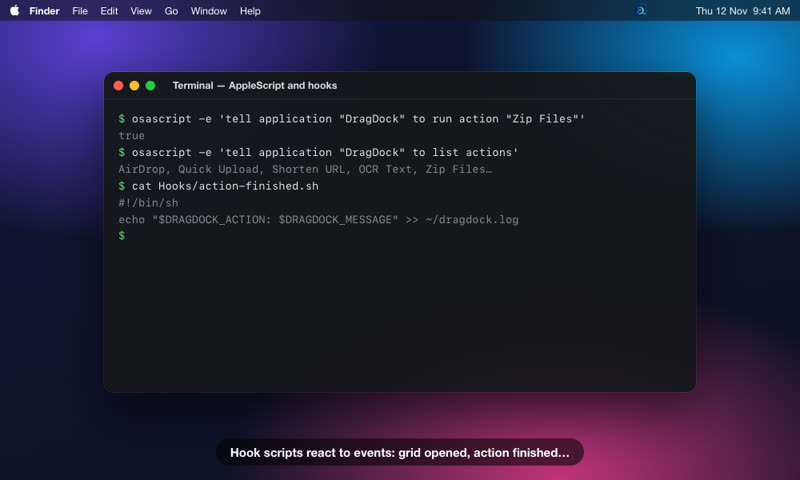
Hook scripts
Put a script named after an event in the Hooks folder of DragDock's data folder. It runs when the event happens (30 seconds at most) with the details in environment variables.
| Event file name | Runs when |
|---|---|
grid-opened / grid-closed | The grid opens or closes. DRAGDOCK_GRID is the grid name. |
dropbar-opened / dropbar-closed | The pop-out Drop Bar opens or closes. |
dropbar-changed | Items are added or removed. DRAGDOCK_COUNT, DRAGDOCK_STACKS and DRAGDOCK_BAR are set. |
action-finished | An action ends. DRAGDOCK_ACTION, DRAGDOCK_OK and DRAGDOCK_MESSAGE are set. |
Use the extension .sh, .py, .applescript or .scpt. DRAGDOCK_EVENT always holds the event name.
#!/bin/sh
# Hooks/action-finished.sh
echo "$DRAGDOCK_ACTION: $DRAGDOCK_MESSAGE" >> ~/dragdock.logFirst run
The first launch opens a Welcome window with three steps (drag, drop, shortcuts) and a list of optional permissions:
- Notifications: tells you when an action finishes or fails.
- Input Monitoring: lets service keys work while you drag from another app.
- Accessibility: lets Insert Current Date type into the frontmost app.
The ticks update by themselves after you allow something. If an item is listed in System Settings but still off, press Reset next to it and allow it again. You can reopen the window from the menu-bar menu (Welcome Guide…).
Preferences tour
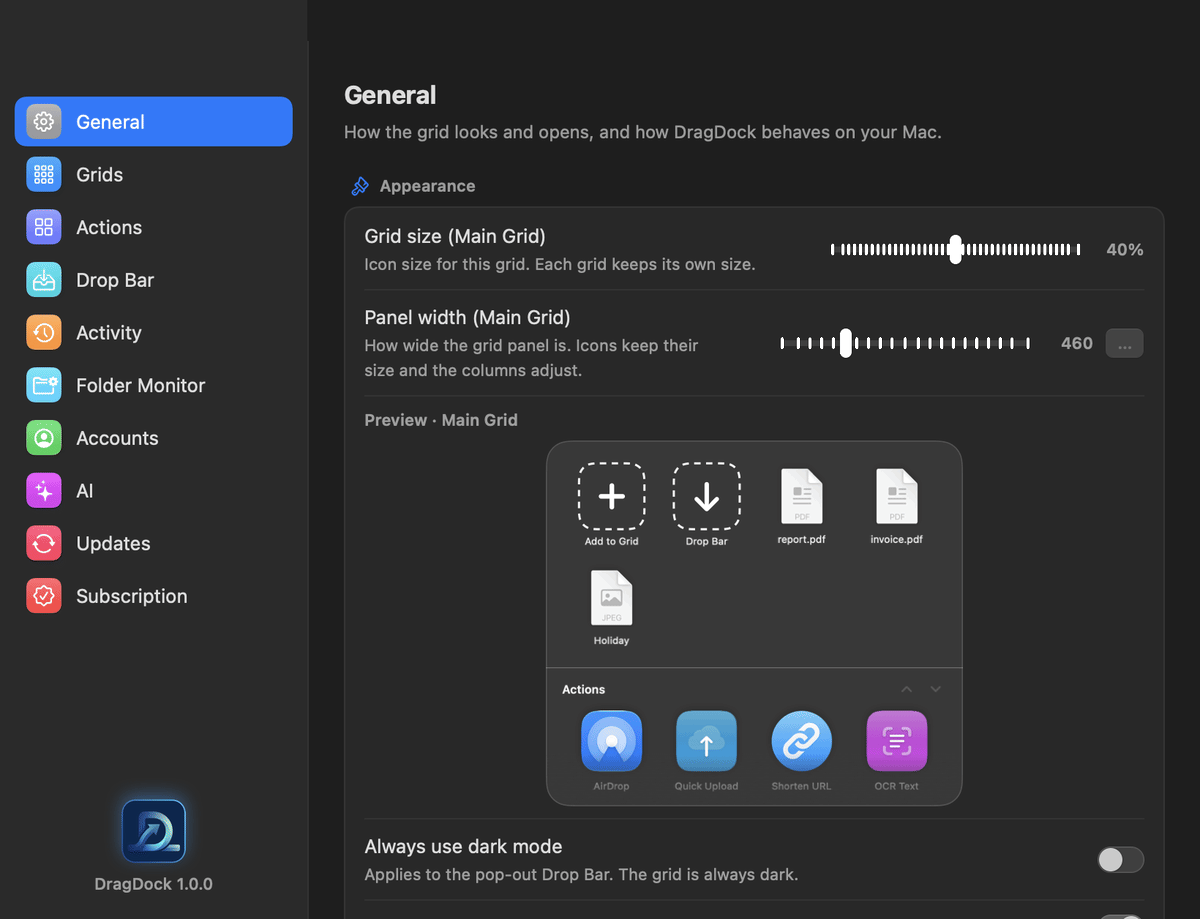
Open Preferences from the gear in the grid or the menu-bar menu (Settings…, ⌘,).
| Tab | What it holds |
|---|---|
| General | Grid size and width, appearance, animations, sounds, notifications, launch at login, hotkeys, privacy and reset |
| Grids | Grids and categories, columns and size, import and export, back up and restore |
| Actions | Every action with its settings |
| Drop Bar | Pop-out shortcut, auto-close, and the Screenshot Watcher that adds new screenshots |
| Activity | Run history, Retry, Undo, Export |
| Folder Monitor | Folders that run actions on new files |
| Accounts | Cloud sign-in and setup guides |
| AI | Provider, limits and consent |
| Updates | Tells you when the App Store has a new version |
| Subscription | Your plan, Restore Purchases, Manage in your Apple account |
Your data
Settings, grids and Drop Bar content are stored in your user Library under Application Support. Preferences → Grids → Back Up… saves everything as one zip, and Restore… brings it back after saving a safety copy. Secrets live in the Keychain, not in those files.
Reset
Preferences → General → Reset Settings puts toggles and shortcuts back to defaults. Reset Grids replaces all grids with the default one; the old file is saved next to it with a timestamp. Accounts, licence and folder rules are kept.