 DragDock
Small app. Long list.
Everything below is in the app today. Animations are captured from the real interface.
An action panel that finds you
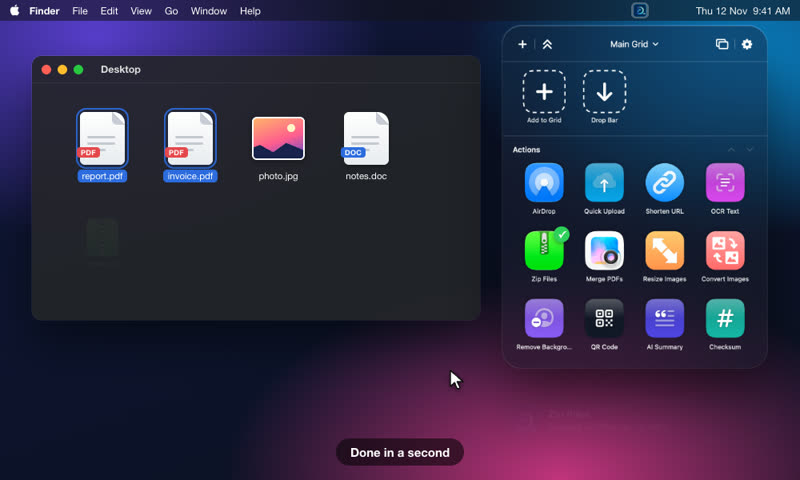
Drag toward the top of the screen, or click the menu-bar icon. The grid opens on the screen under your cursor and closes when you are done. It never takes focus from the app you are working in.
- Categories you can collapse, reorder and rename
- Several grids (Work, Photos, Dev) with their own size and column count
- A bubble under the menu-bar icon shows what you are dragging
- Liquid Glass on macOS 26, a soft blur on macOS 14 and 15
Add, arrange and duplicate actions
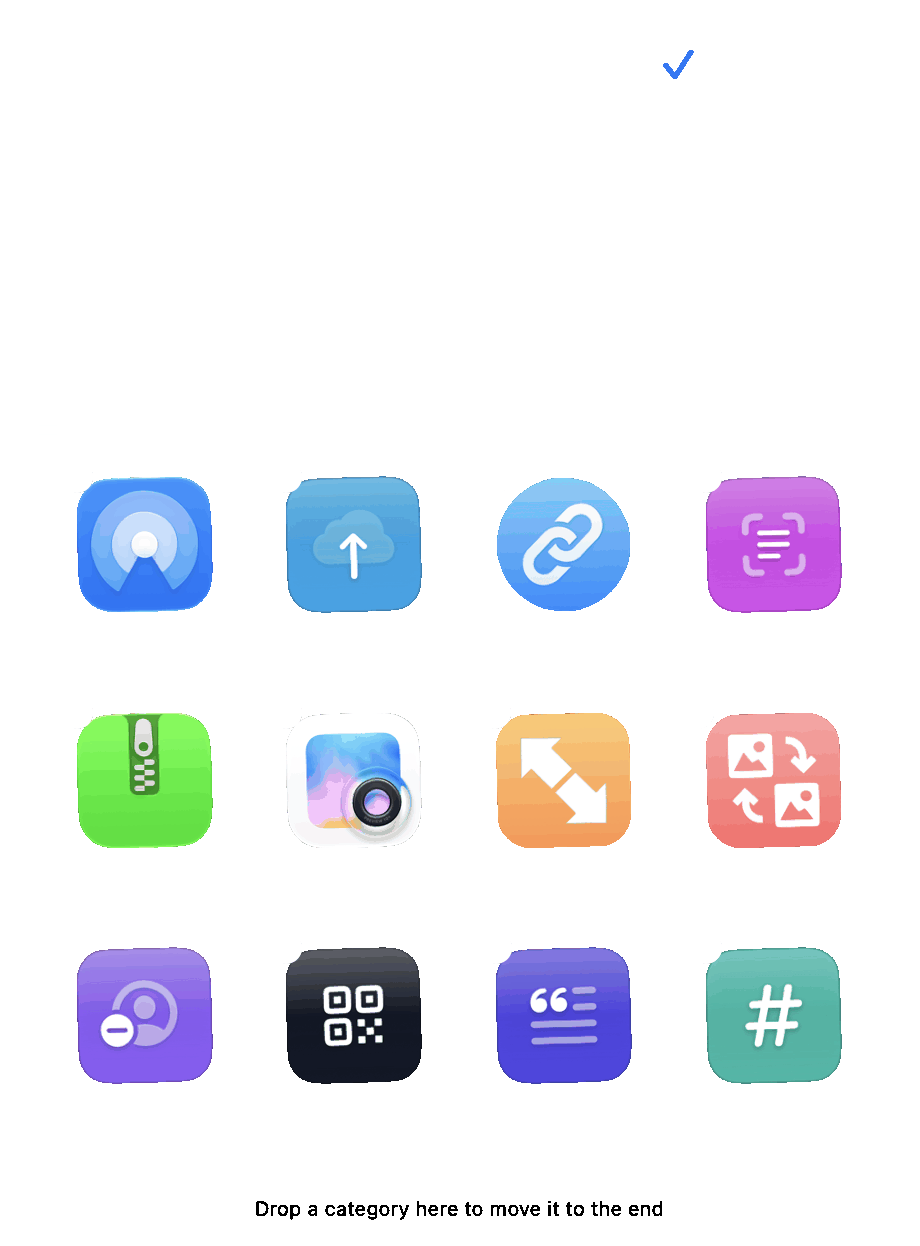
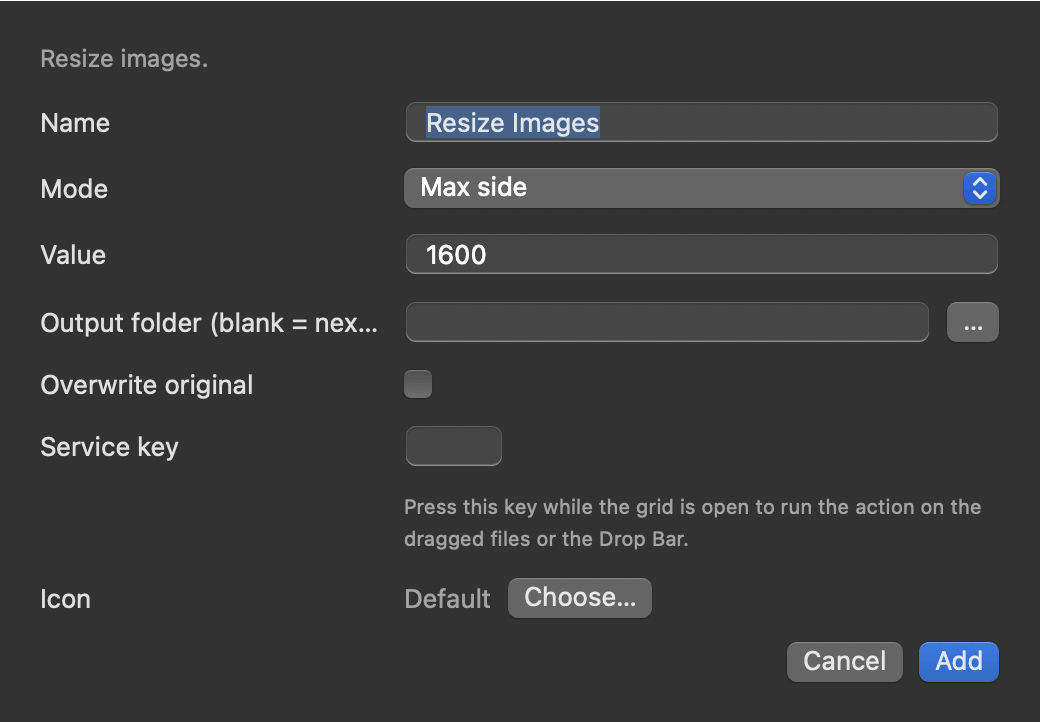
Press + to pick from 86 actions. Right-click a tile to edit, duplicate or delete it. In edit mode, drag tiles to reorder them or move them between categories and grids.
- Every action has its own settings: sizes, formats, folders, naming patterns
- Two Resize tiles, one at 1600 px and one at 400 px? Duplicate and change
- Custom icons, and per-grid icon size and width
- Export a grid to share it, or import someone else's
Pick from 86 actions in two clicks
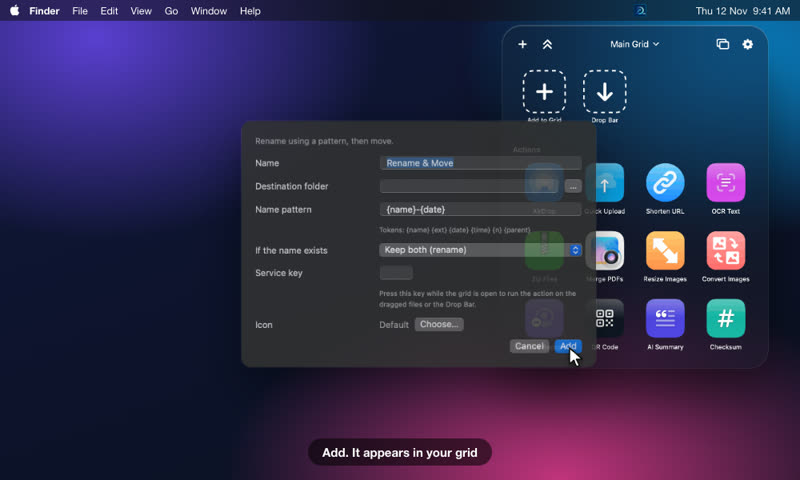
Press + and browse the picker: actions are grouped by category, with a short description beside the one you point at. Pick one, review its settings and press Add.
- Search or scroll; New Category… is at the top
- Actions without options are added immediately
- Every setting has a sensible default, so you can add first and tune later
Hold files now, decide later
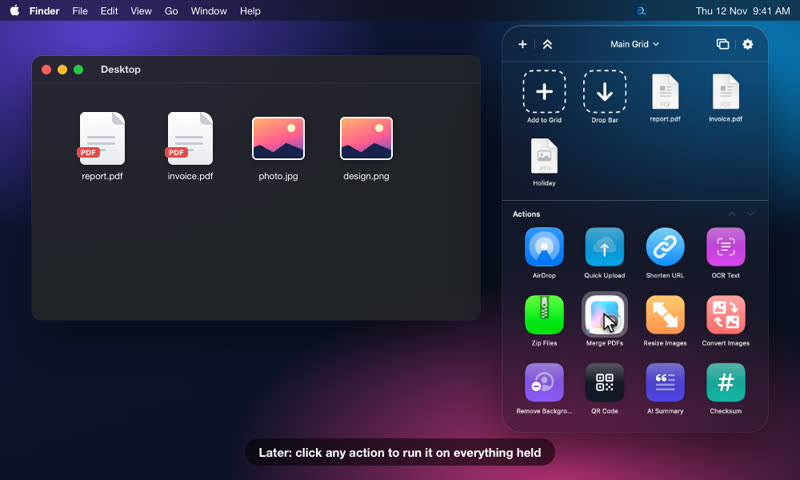
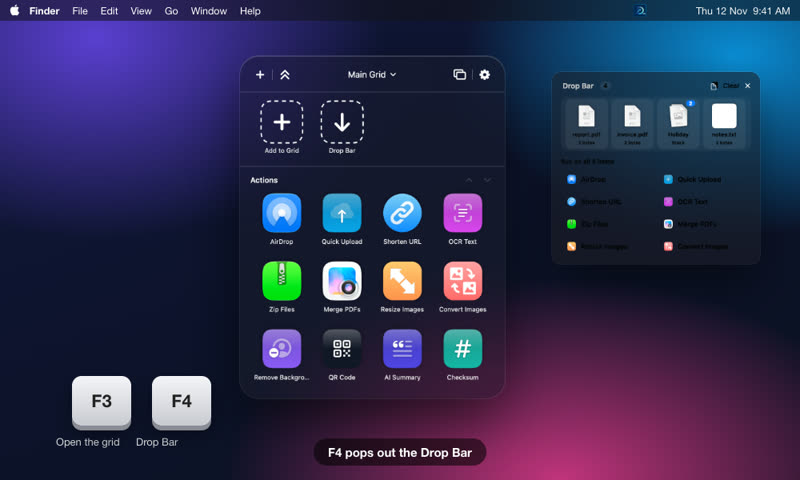
The Drop Bar is a shelf at the top of the grid. Drop files, text or links on it and they wait. Then click any action to run it on everything you are holding.
- Each file is a stack. Drop files on a stack to group them
- Click a stack to see inside; drag any file back out, or several at once
- Lock a stack so it survives a Clear
- Several named bars, for example one per project
- Pop out as a window that stays on screen
Automate a folder
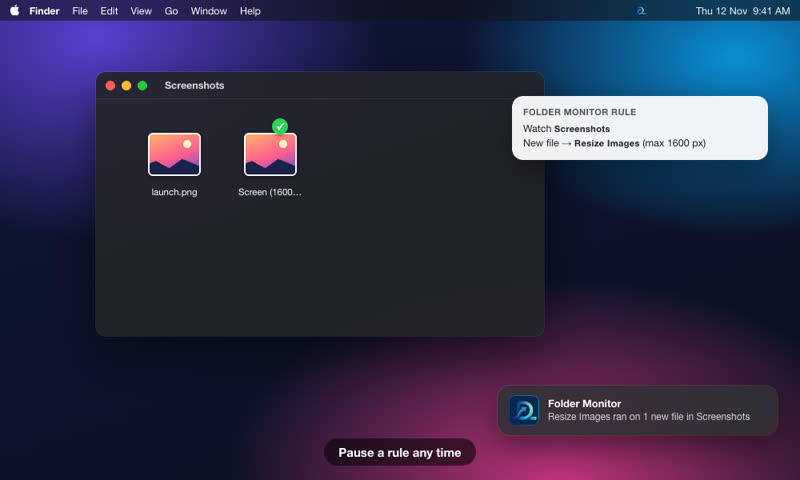
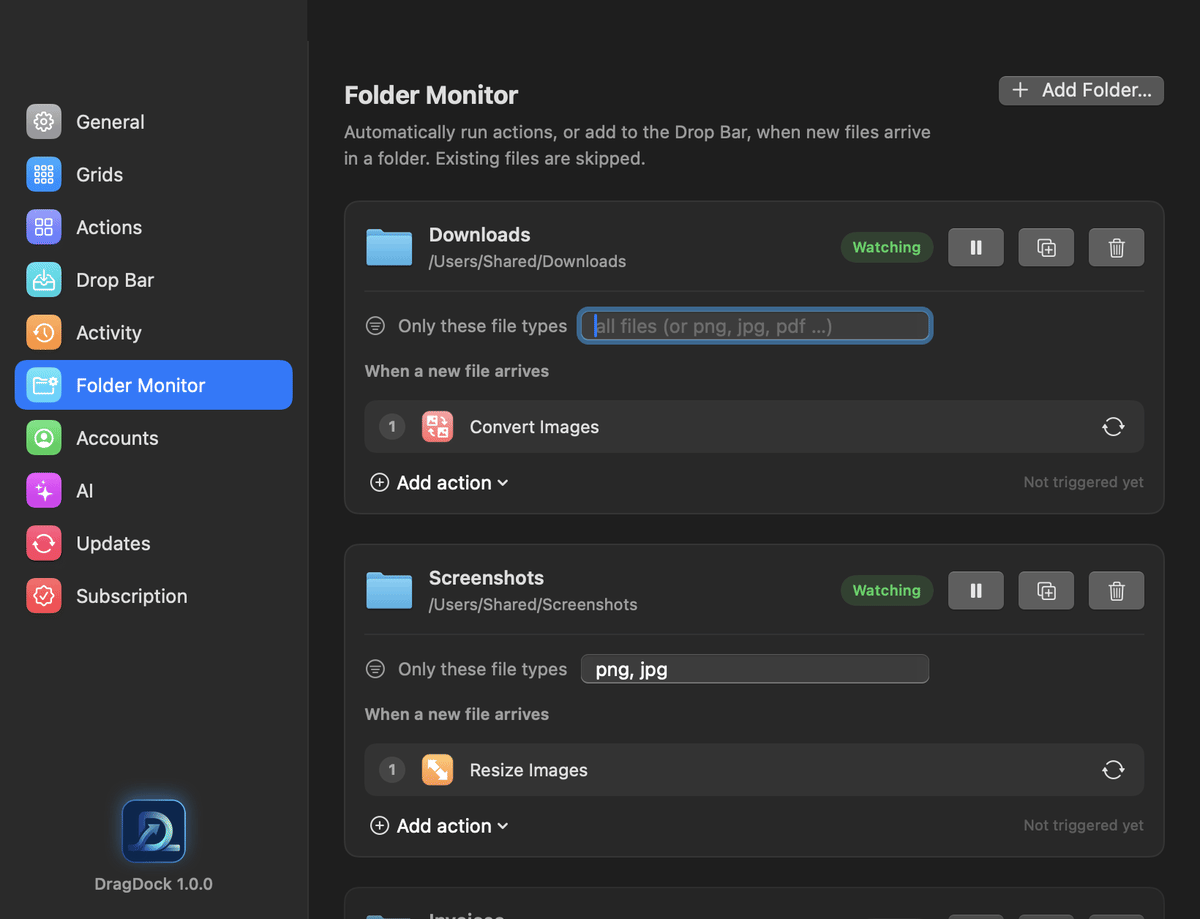
Choose a folder and an action. DragDock watches it and runs the action on each new file, or adds it to the Drop Bar. Existing files are left alone.
- Built-in rule for your screenshot folder
- Pause, duplicate or change the action per rule
- Results appear in Activity, with Retry on failures
From a quick zip to a full pipeline
Files & apps, sharing and upload, links, images and documents, automation, AI, tools and system tasks. Each has a settings sheet with sensible defaults.
- Images: resize, convert, crop, rotate, watermark, filters, remove background, strip metadata
- PDFs: merge, split, compress, password, extract pages and text, to images
- Files: rename with patterns, organise by type or date, find duplicates, clean old files, encrypt
- Share: AirDrop, Mail, Messages, QR codes, short links, uploads
Bring your own storage
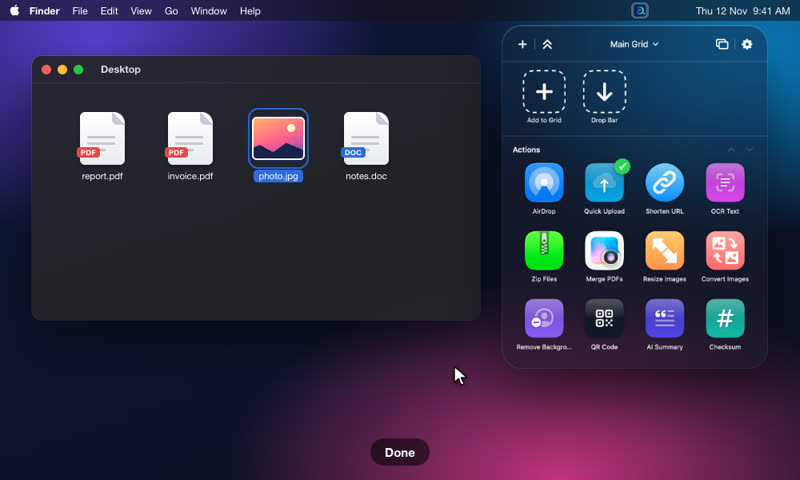
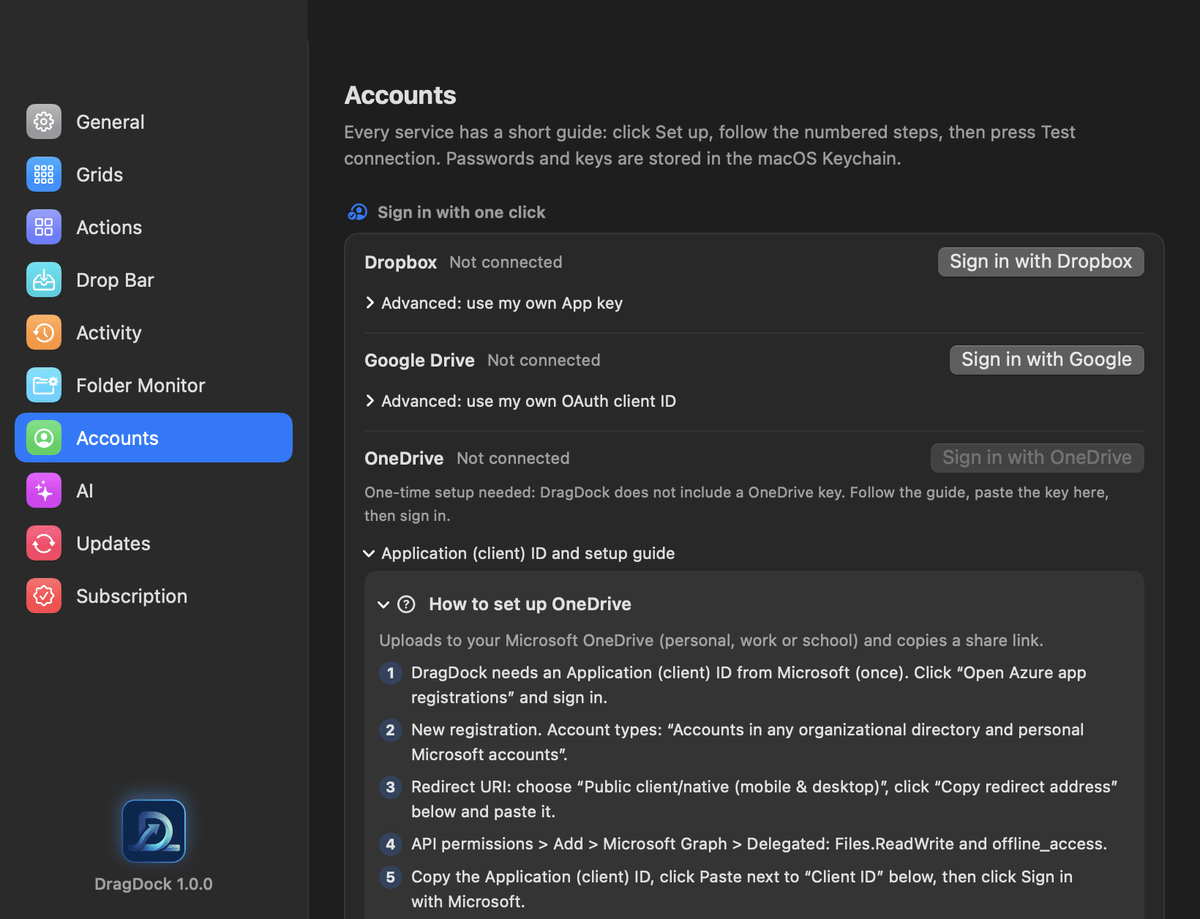
Upload to Amazon S3 (and R2 or MinIO), Dropbox, Google Drive, OneDrive, Imgur, ImgBB and more. Each action has a step-by-step setup guide and a Test connection button, so you find mistakes before dropping a file.
- Secrets are stored in the Keychain, never in plain files
- Large uploads resume automatically on Dropbox and Google Drive
- No account at all for Quick Upload: expiring public links
Summarise, translate, rename, organise
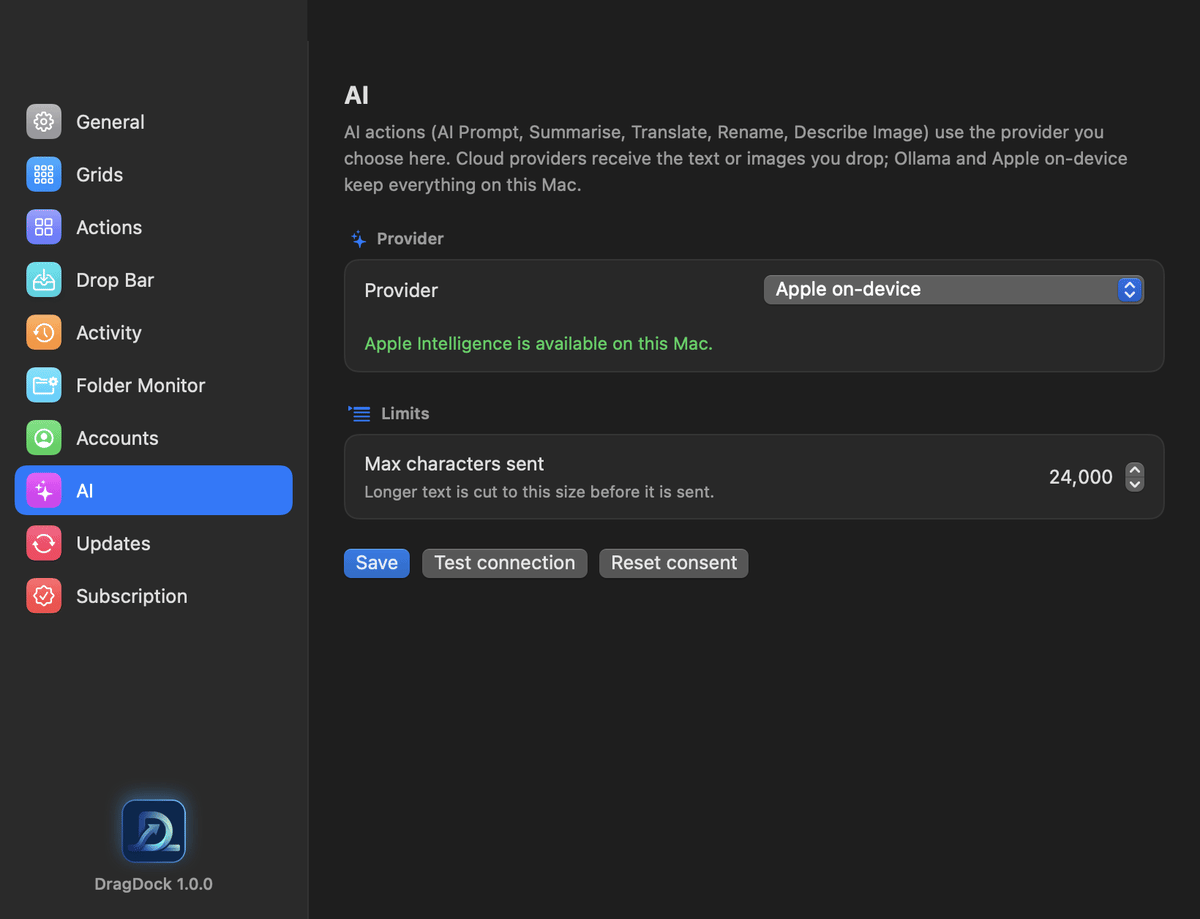
Eleven AI actions work on text, PDFs and images. Choose Apple's on-device model, a local server such as Ollama or LM Studio, or a cloud provider with your own key.
- A consent step tells you what would be sent, and where
- Summaries, translations, proofreading, rewrites, reply drafts, data extraction
- AI Rename and AI Organise are fully undoable
- Limits cap how much text is ever sent
Read, label and cut out, privately
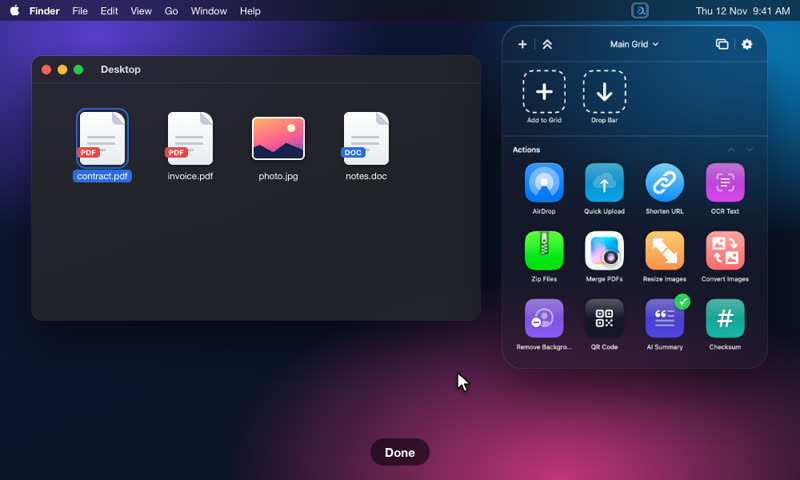
OCR Text, Remove Background and image labelling run with Apple's Vision framework on your Mac. Nothing is sent anywhere.
- OCR to the clipboard or to a .txt file
- Remove Background keeps the subject and saves a cut-out
- Tag Images adds Finder tags from what is in the photo
- Scan QR Code reads barcodes from screenshots
Every run is on the record
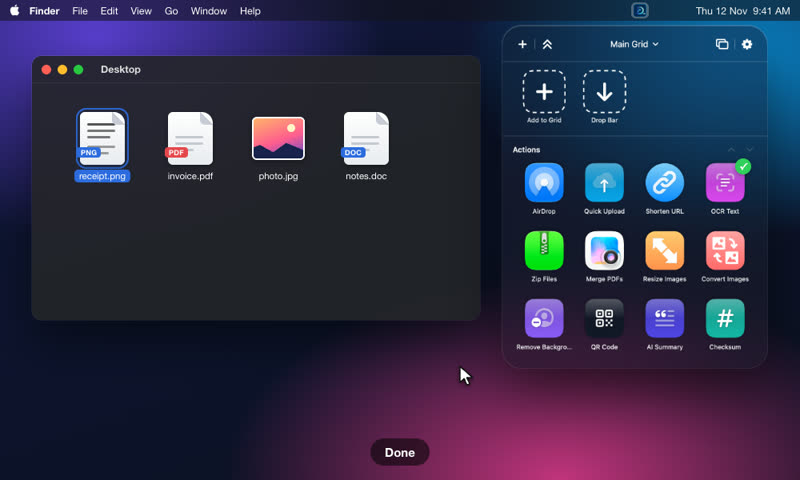
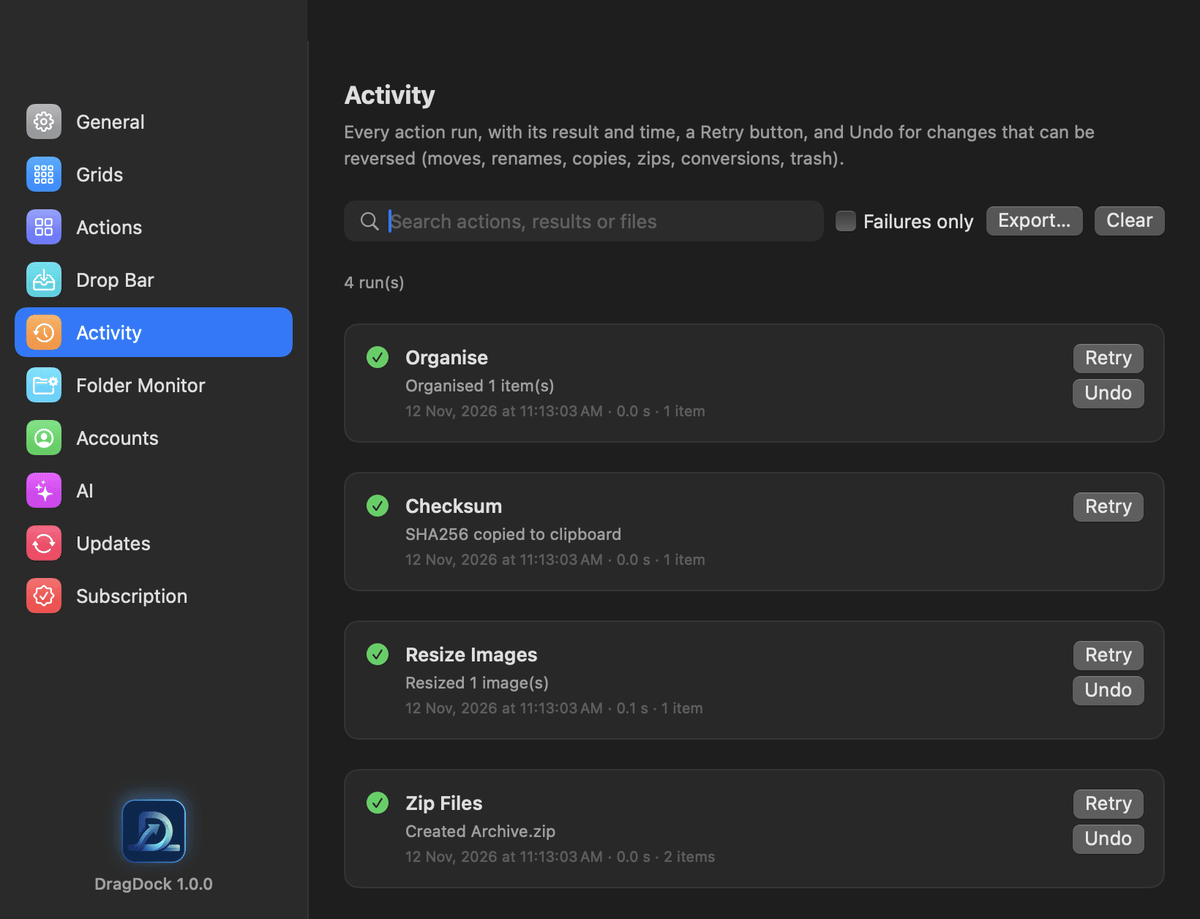
Activity lists the last 200 runs with result, time and duration. Moves, renames, copies, zips, conversions and trashing can be undone with one click.
- Retry any run, and search or filter to failures only
- Export the log
- Cancel long jobs; progress shows on the tile
- Name conflicts: ask, rename, overwrite or skip
Your best actions, one drop from Finder
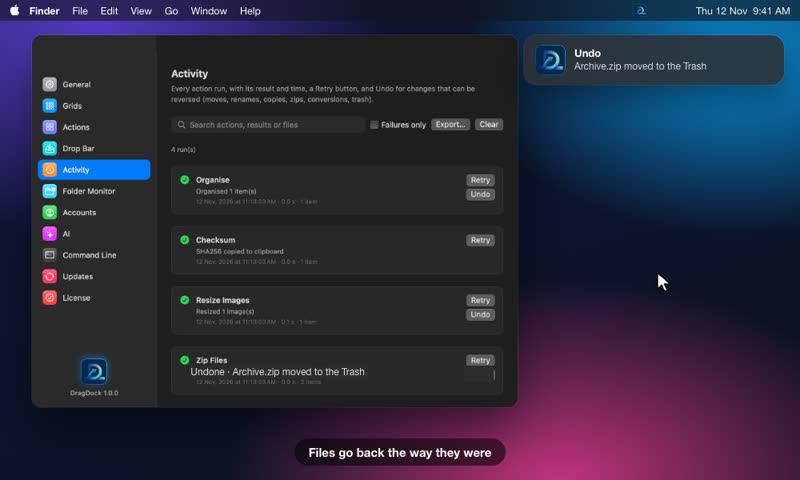
Right-click an action and choose Add to Favorites. It is pinned at the top of the grid, and also becomes a small droplet app in ~/Applications/DragDock Favorites.
- Drag that folder into the Finder sidebar or Dock
- Drop files on a droplet to run the action, even with the grid closed
- Perfect for the two or three things you do all day
Tear an action off the grid
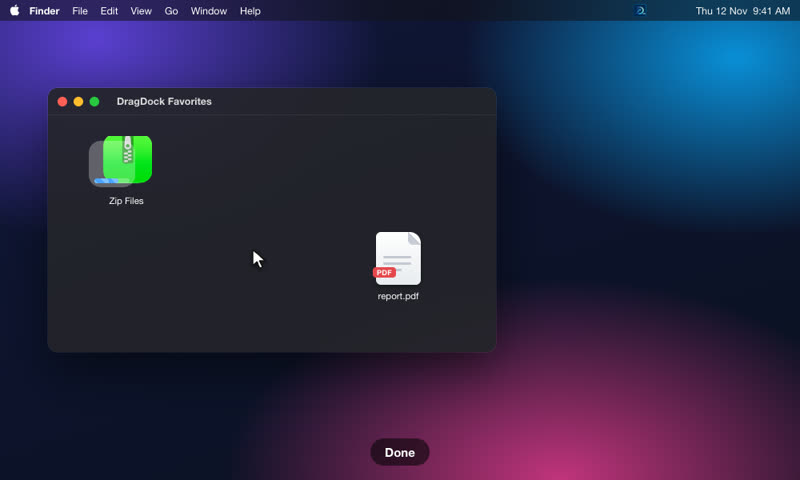
Right-click an action and choose Open in Floating Window for a small always-on-top drop target. Keep it in a corner of the screen and drop files on it from any app.
- As many floating windows as you like
- They return where you left them after a restart
- Same action, same settings, no grid in the way
Keys for everything
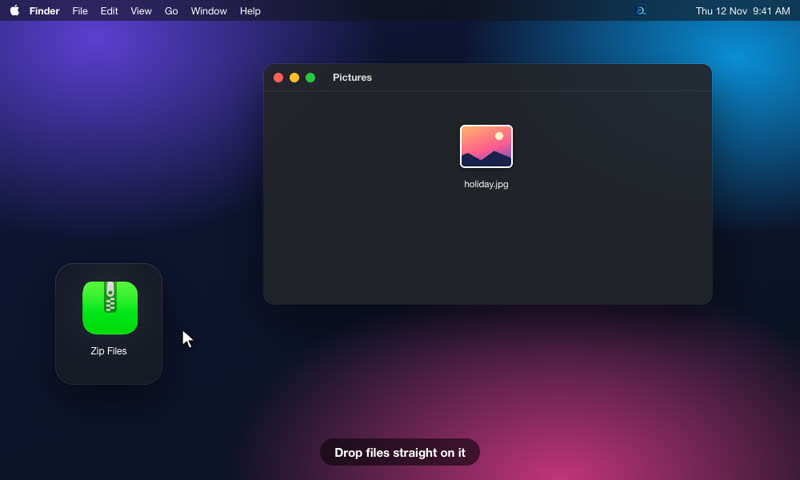
Global hotkeys open the grid (default F3) and the Drop Bar (F4). Give each grid its own key plus next and previous. Assign a service key to an action to run it with one key press while you drag.
- Built-in key recorder; duplicates are flagged
- One key per grid, plus next and previous grid
- Finder Services entry: Add to DragDock Drop Bar
Part of your automations
Add files to the Drop Bar, open the grid or run any action from Shortcuts and Siri. The Run Shortcut action does the reverse: it hands dropped files to one of your own shortcuts.
- Siri phrases: “Open DragDock”, “Add files to DragDock”, “Run Zip Files in DragDock”
- Shortcuts actions: Add Files to Drop Bar, Open DragDock Grid, Run DragDock Action, Clear Drop Bar
- Pick any action from your grids and pass files to it
“Hey Siri, open DragDock”
Voice or keyboard, the grid opens.
Run DragDock Action
A Shortcuts step: choose an action, add files, go.
Script it, or let it call your scripts
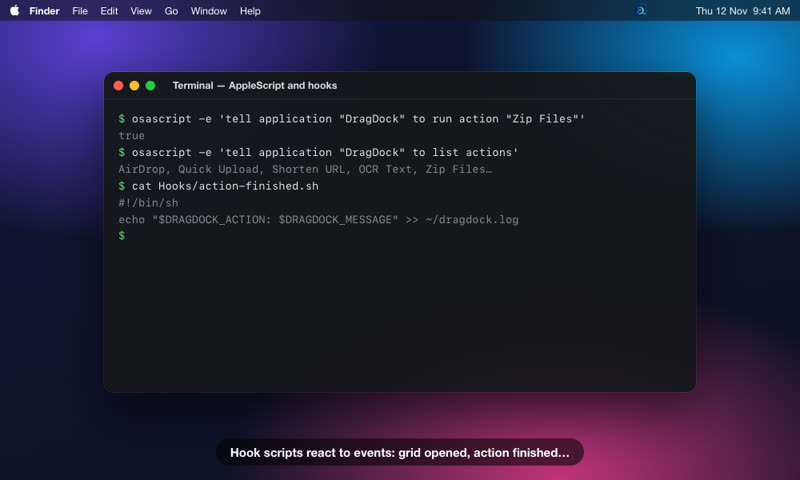
DragDock has an AppleScript dictionary: add to the Drop Bar, run an action by name, open or close the grid, clear the Drop Bar, list your actions. In the other direction, drop a script in the Hooks folder and DragDock runs it when the grid opens or an action finishes.
- Events: grid opened or closed, Drop Bar opened, closed or changed, action finished
- Hook files can be shell, Python or AppleScript
- The event details arrive as
DRAGDOCK_*environment variables
A dragdock tool for scripts and launchers
Add files to the Drop Bar, run an action, switch grids, back up, watch events and more from Terminal, Raycast, Alfred or a shell alias. dragdock help lists every command.
dragdock command-line tool Scripting hooks may also be limited by the sandbox.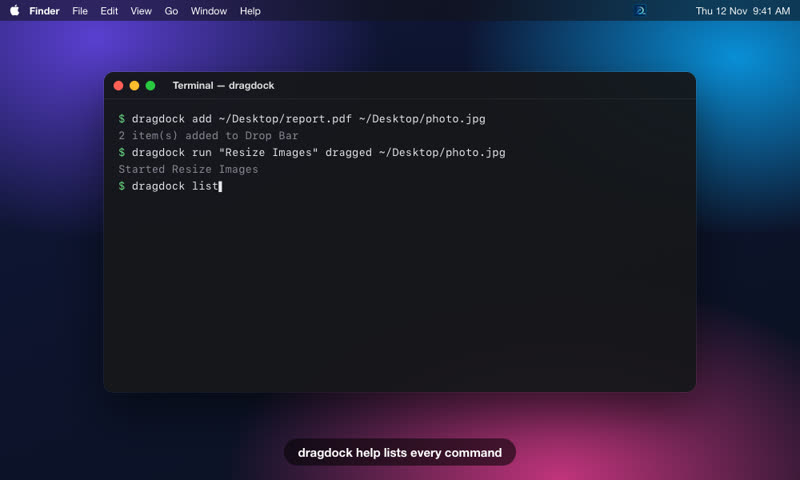
A tour of the settings
Everything is in one window, grouped by what it does. Pick a tab.
General
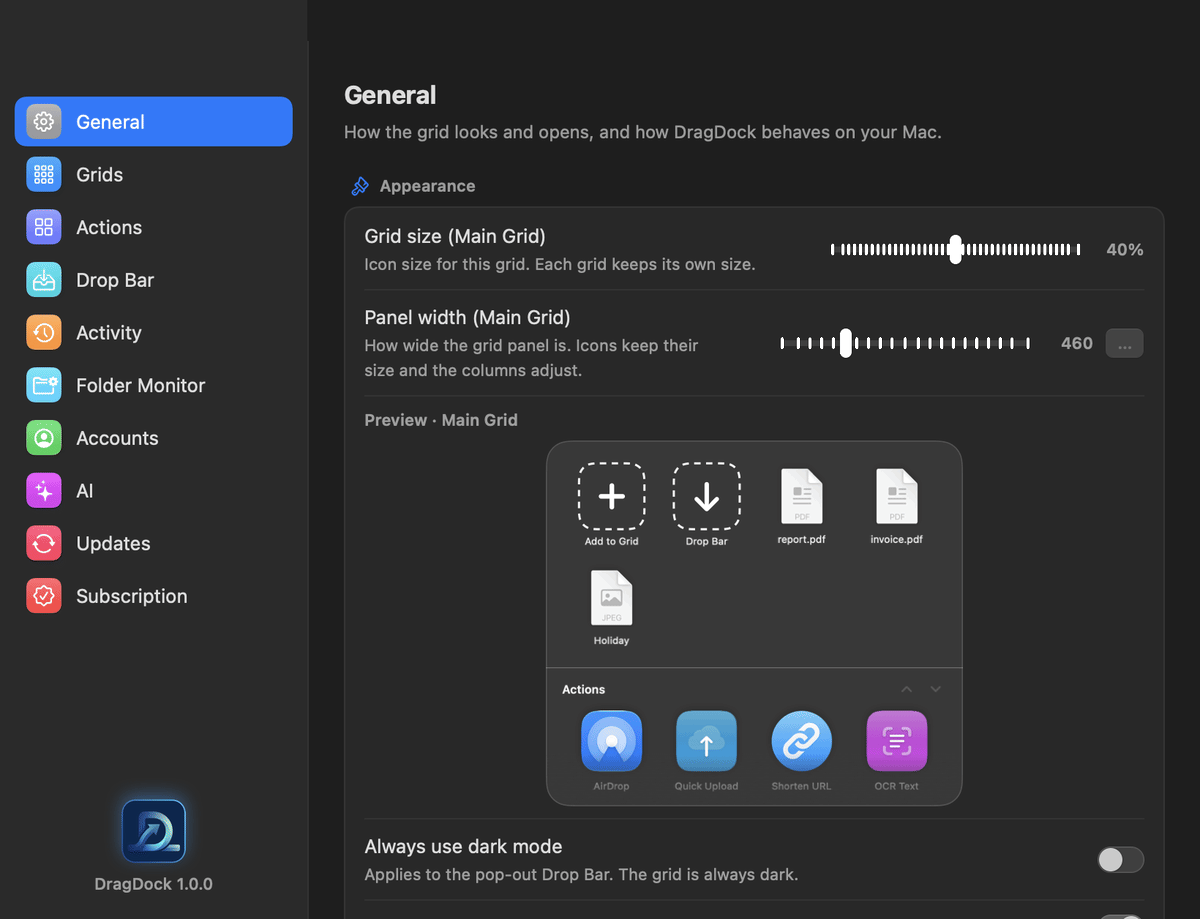
Grid size and panel width with a live preview, dark mode, animations, sounds and notifications, launch at login, and all the global hotkeys. Privacy has the switch for anonymous usage statistics, and Reset puts settings or grids back to the defaults.
Grids
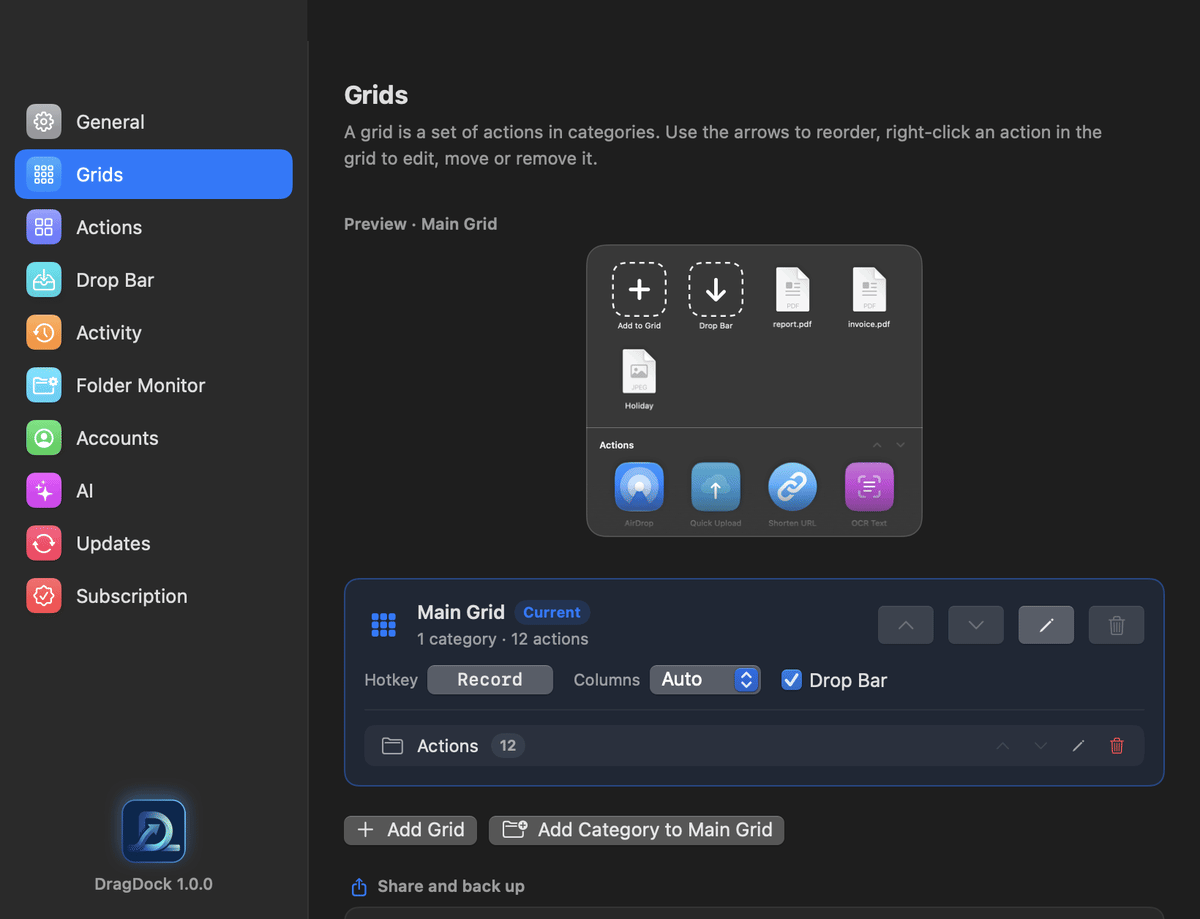
Create, rename, reorder and delete grids and categories. Set columns, icon size, width and whether the Drop Bar shows. Export a grid to share it, import one, and back up or restore everything in one file.
Actions
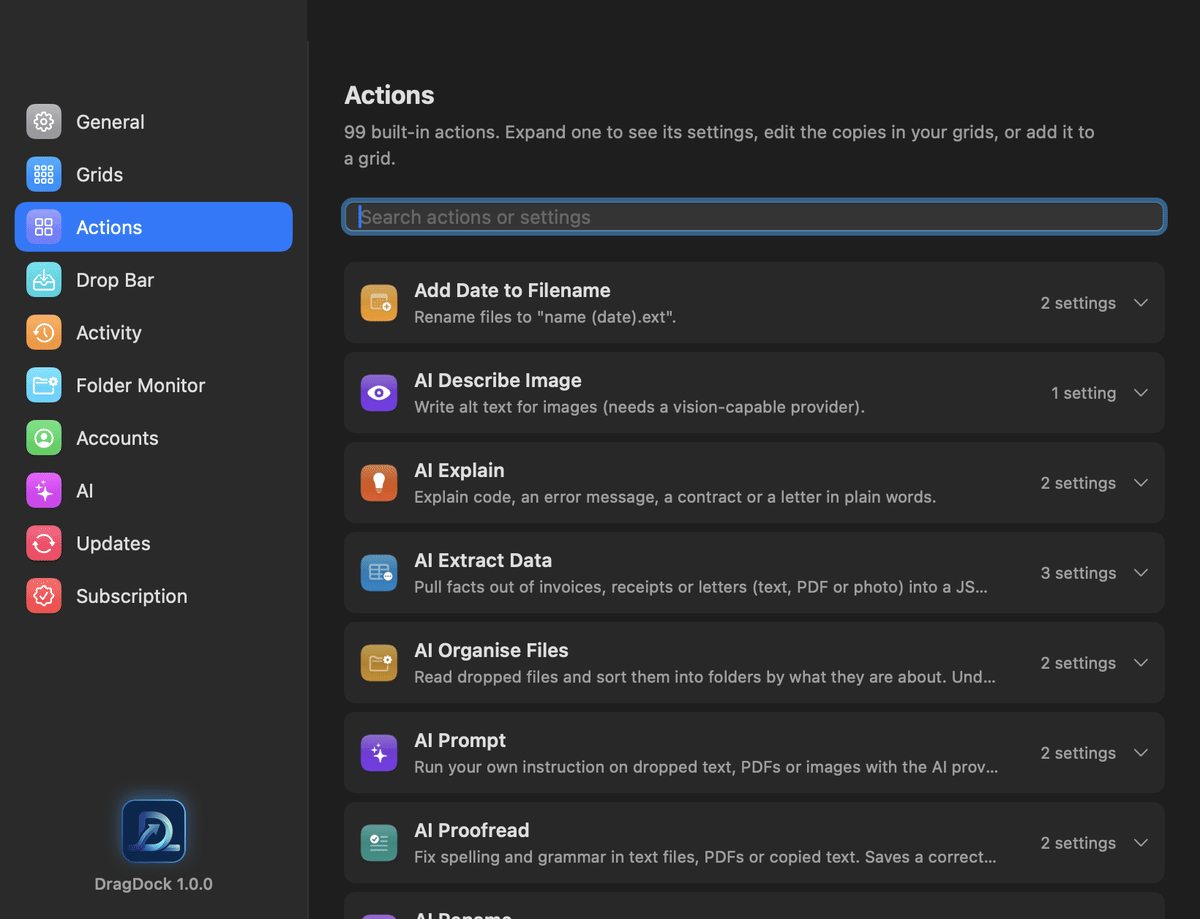
All 86 actions in one searchable list. Expand one to see its settings, edit the copies in your grids, or add it to a grid.
Drop Bar
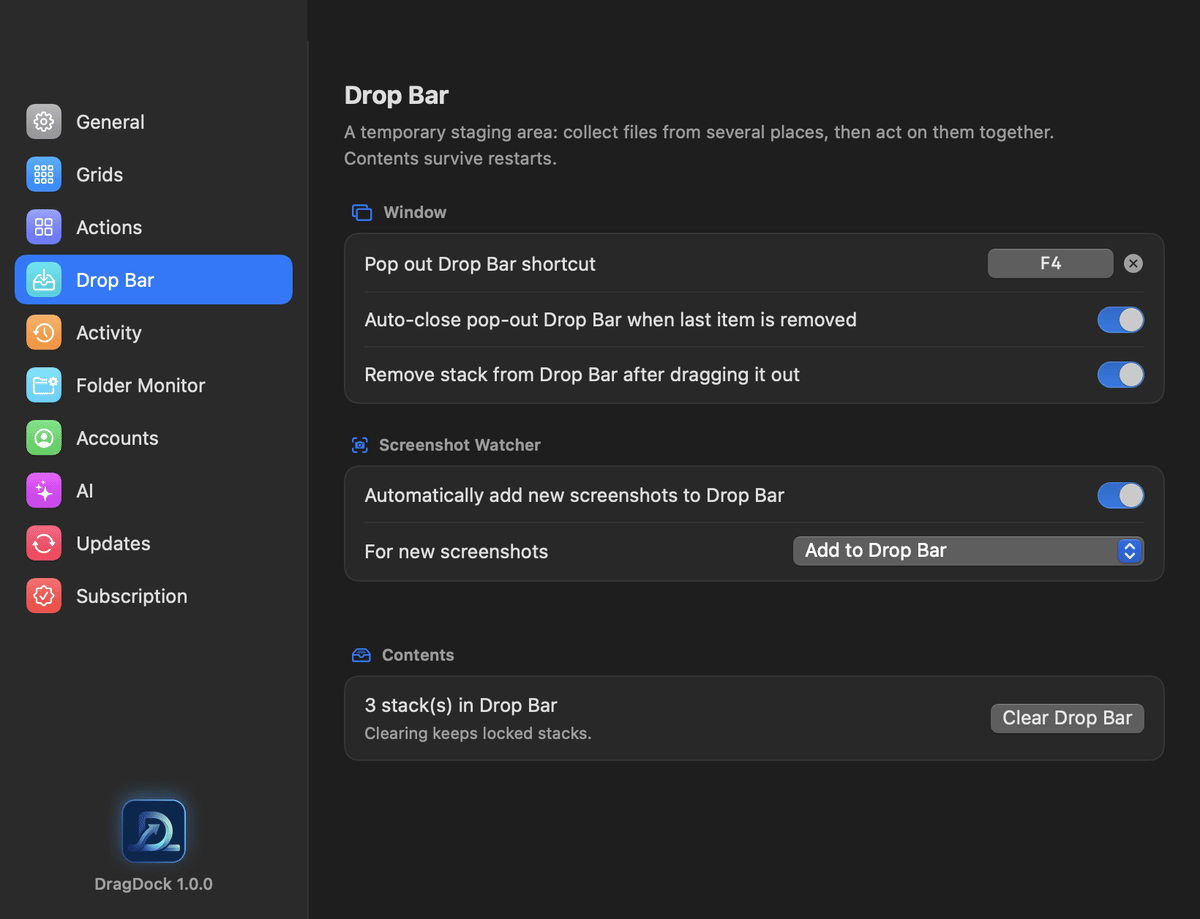
The pop-out shortcut (F4), whether the pop-out closes when it is empty, and whether stacks leave the shelf once you drag them out. The Screenshot Watcher can add each new screenshot to the Drop Bar for you.
Activity
Every run with its result and time. Search, filter to failures, Retry a run, Undo a change and Export the log.
Folder Monitor
One card per watched folder: the file types it reacts to, the actions that run, and pause, duplicate and delete buttons. A badge shows whether the folder is being watched or has gone missing.
Accounts
Sign in to Dropbox, Google Drive and OneDrive, with a short guide for each service and a Test connection button. Keys are stored in the macOS Keychain.
AI
Choose the provider (Apple on-device, a local server or a cloud provider), test it, limit how much text is sent, and reset your consent.
Two more tabs: Updates tells you when the App Store has a new version, and Subscription shows your plan, restores purchases and links to your Apple account.
The small things
27 interface languages
The app's menus and labels are translated for 27 languages, including Bangla. Longer help text is in English.
Backups
Preferences → Grids backs up your grids and Drop Bar in one zip, and restores it after saving a safety copy. Old settings are upgraded and kept, never overwritten.
Multiple displays
The grid opens on the screen your cursor is on, and the top-edge drop area covers each display.
Light, dark, and glass
Follows the system appearance, or force dark. Real Liquid Glass on macOS 26.
A gentle first run
A Welcome window shows three steps and three optional permissions: notifications, Input Monitoring for service keys and Accessibility for typing the date. Nothing is required.
Retry and cancel
Retry any failed run from Activity. Cancel a long job from its tile; running programs are stopped too.
One grid per hotkey
Give each grid its own key, then step through them with next and previous.
Launch at login
One switch in Preferences. DragDock is a menu-bar app with no Dock icon.
Accessible by design
VoiceOver labels on every control, full keyboard use, and Reduce Motion respected.