 DragDock
Drag. Drop.
Done.
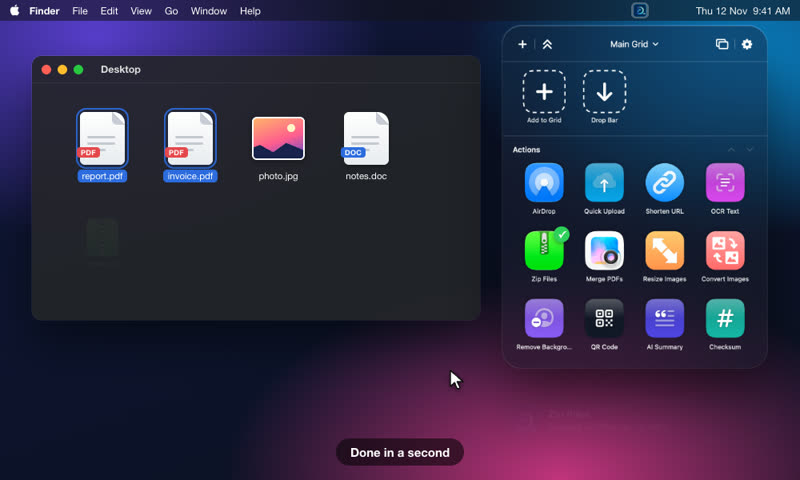
Drag files toward the top of your screen and a grid of actions opens under your cursor. Drop on one to zip, resize, convert, upload, summarise or send. No windows to open, no apps to switch.
Three moves, no setup
DragDock sits in the menu bar and stays out of the way until you drag something.
Drag
Pick up files, text or a link and move toward the top of the screen. A small bubble confirms what you are holding.
Open the grid
The grid appears under your cursor, on the screen you are using. It never steals focus from the app you are in.
Drop on an action
Zip, resize, merge, upload, AirDrop. The tile shows progress, a green check, and a notification when it is done.
The jobs you do every day, in one drop
Pick an action to watch it run. Every one is a tile you can rename, reorder or duplicate with different settings.
Resize and convert photos
Drop photos on Resize Images to scale them to a width you choose, keep or strip location data, and write copies next to the originals. Convert, crop, rotate, watermark and filter work the same way.
See Resize Images options →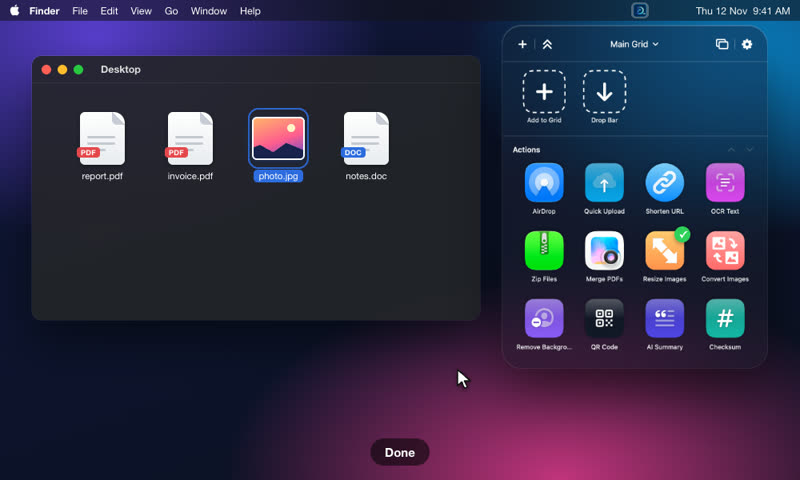
Copy text out of any image
OCR Text uses Apple's on-device Vision framework. Drop a screenshot, a scan or a photo of a receipt and the text lands on your clipboard, or in a .txt file next to it.
See OCR Text options →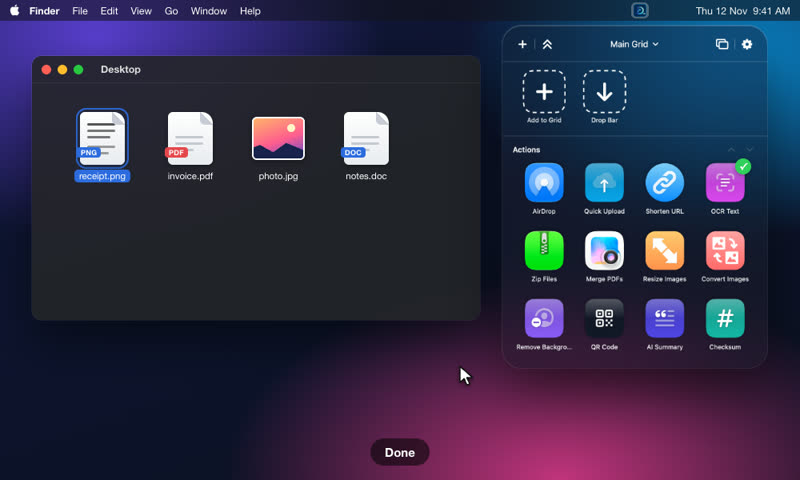
Get a link in one drop
Quick Upload needs no account: it uploads the file, copies a temporary public link and lets it expire. Prefer your own storage? Amazon S3, Dropbox, Google Drive, OneDrive, Imgur and more are built in.
See Quick Upload options →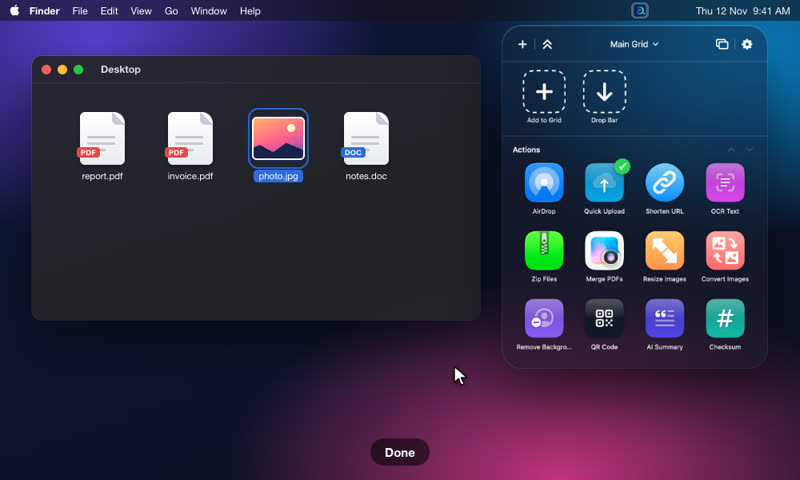
Summarise, translate, rename
AI actions work with Apple's on-device model, Ollama or LM Studio, or a cloud provider you choose. You see what will be sent and approve it first.
See AI Summarise options →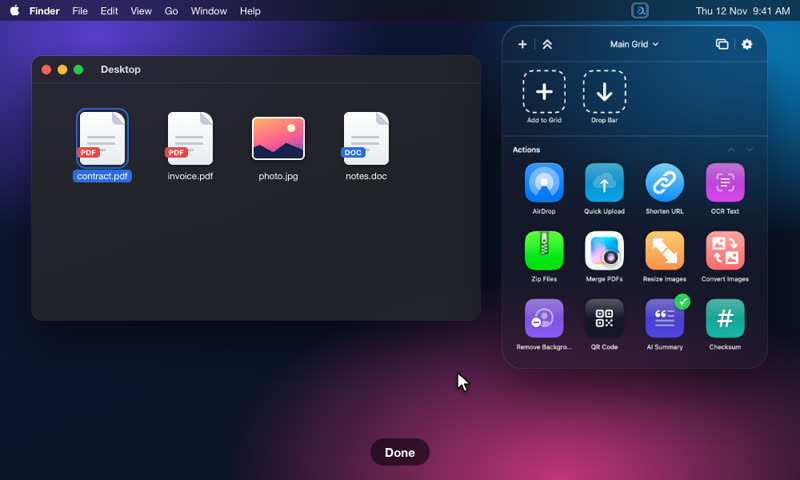
A shelf for files in transit
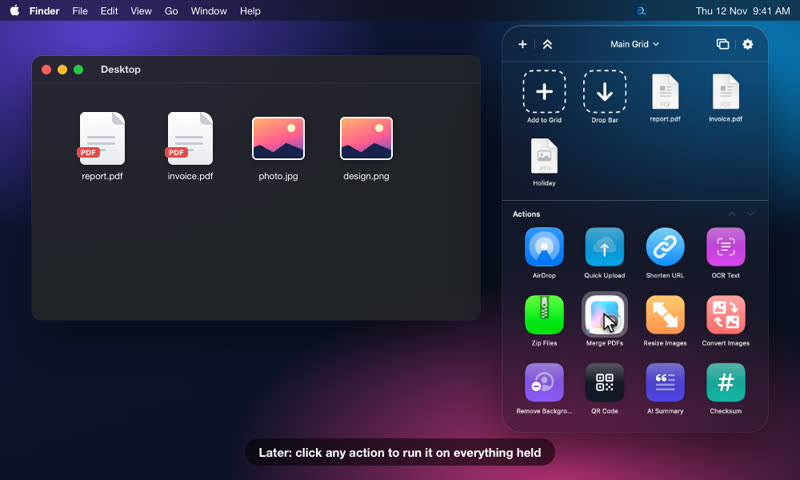
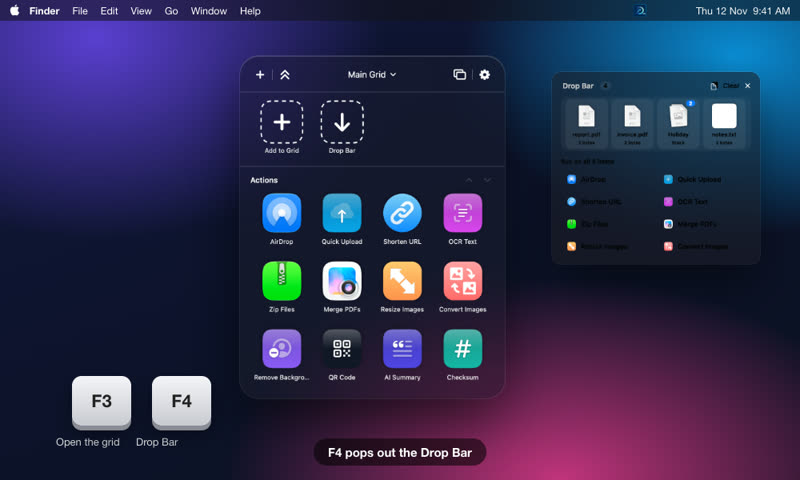
Not ready to decide? Drop files on the Drop Bar and they wait there: grouped into stacks, locked, or renamed. Come back later, click an action, and it runs on everything you held.
- Several named Drop Bars, for example one per project
- Pop it out as a window that stays on screen
- Survives restarts, with a lock so a stack is never cleared by accident
Let new files run an action on their own
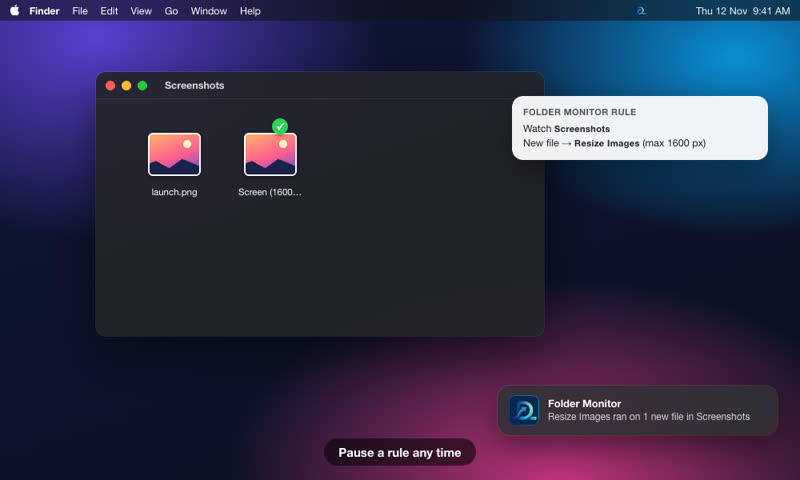
Point DragDock at a folder such as Downloads or Screenshots. Every new file triggers the action you chose, with no dragging at all.
- Resize new screenshots, file away downloads, upload what you capture
- Pause a rule any time
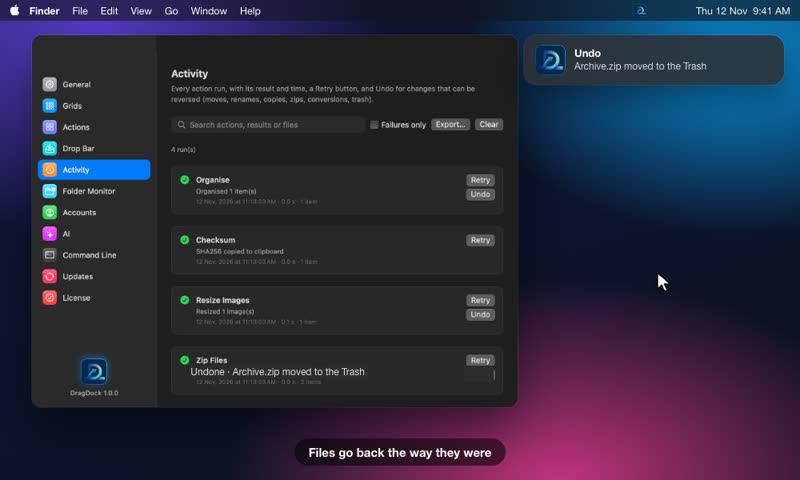
- Each run is logged in Activity
Changed your mind? Undo it
Moves, renames, zips, conversions and trashing are recorded in Activity. One click puts things back the way they were. Long jobs show progress and can be cancelled.
- Conflict policy: ask, rename, overwrite or skip
- Retry a failed run from the same list
- Resize, convert and similar actions write copies, so your originals stay put
Open it from the keyboard too
Press F3 to open the grid wherever you are, F4 for the Drop Bar. Give any action its own key, or one hotkey per grid. Nothing is hard-wired.
- Global hotkeys with a built-in recorder
- Service keys: one key runs one action while you drag
- Finder droplets and floating tear-off windows for favourites
Shape DragDock around how you work
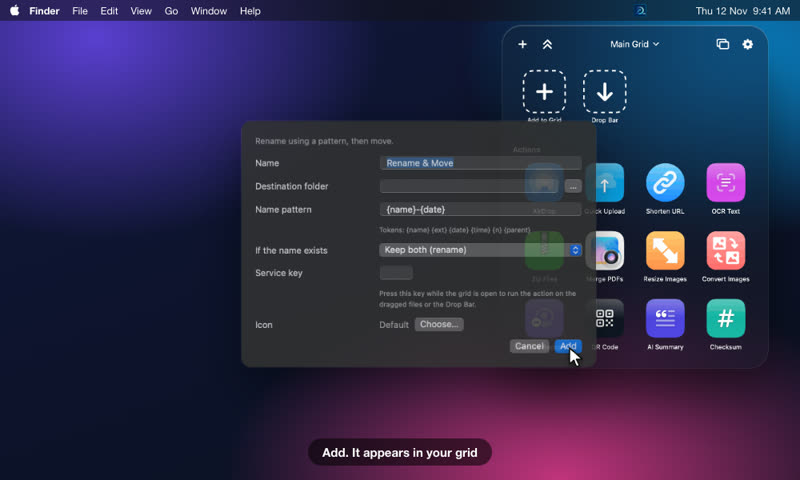
Add actions in two clicks
Browse 99 actions by category, then tune the settings.
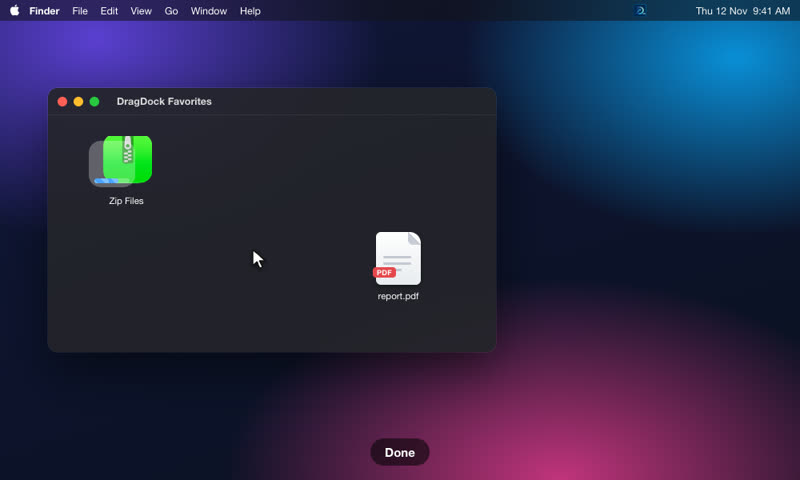
Favourites as Finder droplets
Pin an action, then drop files on its droplet from Finder.
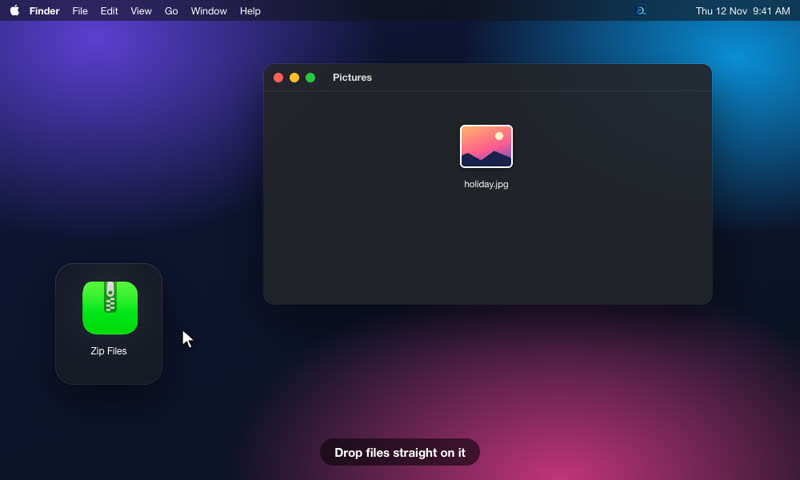
Floating drop targets
Tear an action off the grid and keep it on screen.
One drop for almost anything
Files and apps, sharing and upload, images and documents, automation, AI and system tools. 43 of them are free forever.













Native, quiet and private
Light on your Mac
Written in Swift with SwiftUI and AppKit. It idles with no timers while you are not dragging.
Your files stay yours
Actions run on your Mac. Passwords and API keys live in the Keychain. Nothing is uploaded unless you drop on an upload action.
Yours to arrange
Multiple grids and categories, custom icons, sizes and columns. Duplicate an action and set it up differently.
AI on your terms
Use the on-device model or your own provider. DragDock asks before anything leaves your Mac.
Accessible
VoiceOver labels, keyboard control and Reduce Motion are respected throughout.
Siri and Shortcuts
Add files, open the grid or run any action from a shortcut or by voice.
Free to start. Pro when you need more.
Every file action is free. Cloud uploads, OCR, AI and scripting are Pro, with a 15-day trial that opens everything.
Monthly
Cancel any time in your Apple account.
Yearly
Best value for regular use.
Lifetime
Pay once, keep Pro for good.
Quick answers
Does it work with any app?
Do I need an account?
Is it free?
Where do I get it?
Your next file is one drop away
Get DragDock and make the boring parts of working with files disappear.